



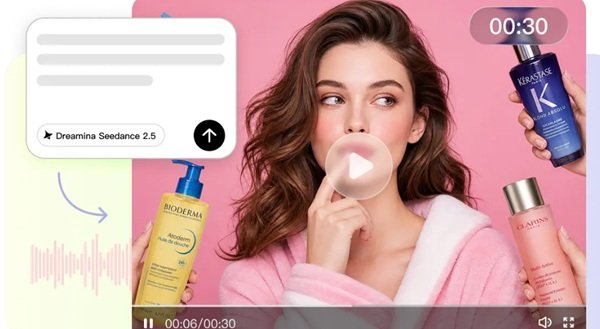
Many technical decisions are required in the traditional video production workflow that makes it tough for beginners. They need to learn timelines, codecs, lighting, framing, sound, transitions, and exporting. Intuitive interfaces alleviate this burden by making complex actions a guided choice. Pippit provides a practical learning path with prompts, references, generation, editing, regeneration, and export. This is a great way for beginners to get some practice with visual storytelling before getting to the more advanced production terminology.
Why an Intuitive Interface Matters in AI Video Creation
The simplified interface decreases the number of steps required to start a project. You don’t build all the visual elements yourself; you tell the computer what you want to see. The system converts creative instructions into moving photos, sounds, rhythm, and visual details. Guided controls also demonstrate the impact of duration, language, subtitles, and framing. It provides easy controls for marketers, students, creators, and small teams to work faster. Pippit combines generation and editing in a single application, thereby minimizing switching between different applications. Its workflow allows the beginner to concentrate on “Message, Audience, Mood, and Visual Consistency.” The AI video generator helps with this by converting text and resources into video drafts.

Learn Through AI Audio and Prompt-Based Video Creation
SeedAudio 2.0 makes it easier for novice users to learn how prompts can influence the entire soundscape of a video. SeedAudio 2.0 allows you to describe the dialogue, ambience, sound effects, music, speakers, and timing in one prompt. It also has a timestamp feature, which allows you to set the timing of specific dialogue or audio cues, making it easier to understand scene timing. Voice characteristics can also be controlled by reference audio, and video input can be used to sync generated audio to visual beats. Dialogue, ambience, effects, and music tracks are separate for added control during editing. This technique allows novices to develop skills in coordinating visuals, voices, atmosphere, and timing without having to first learn complex audio-production techniques.

Steps to Accelerate Learning Curves Using Seedance 2.5 Intuitive Interface
Step 1: Start With the Simple Setup
- Sign up for Pippit by using your Google, TikTok, or Facebook account info.
- Navigate to the “More” tab on the left vertical menu bar and click it to access “Video generator”.
- Select an AI model, such as “Dreamina Seedance 2.5” for your video generation.
- Enter a detailed text prompt describing how you want the video to look.
- If you want, select the video length, language, subtitles, and aspect ratio in which you want to generate the video.
- Click “+” to upload reference images or videos from your device, phone, Dropbox, or a link. You can also select assets if you don’t have reference media.
- Once everything is added, click “Generate”.
Step 2: Learn Through Instant Results
- After clicking “Generate”, Pippit’s AI video generator automatically creates a video based on your text prompt and reference media.
- The AI handles editing elements like transitions, pacing, captions, avatars, voice, lyrics, and visual enhancements.
- You will receive a video draft to review and learn how the different creation elements work.
Step 3: Practice With Easy Editing
- You can click on the “Download” tab in the top right corner to save it to your local device. You can also click on “Regenerate” if you don’t like your video. To edit the generated video, you can click the “Edit more” tab present right under the video to open the Pippit editing interface for further customization.
- Customize your video by editing captions manually, adding text, and adjusting size, color, alignment, filters, and effects.
- You can also add background music, remove backgrounds, and fine-tune the visuals as you practice.
- When your video is ready, click “Export” in the top right corner.
- Select “Publish” to post directly to TikTok, Instagram, or Facebook, or click “Download” to save the video with your preferred format, resolution, frame rate, and quality.
Six Interface Elements That Help Beginners Learn Faster
- Model selection: Select the best model and understand the various uses of the different models.
- Prompt field: Show scenes instead of learning complex animation commands.
- Reference uploads: Use when text alone doesn’t capture the appearance, style, or composition.
- Generation controls: Set duration, language, subtitles, and aspect ratio to understand output specifications.
- More practice: Gradually edit more captions, effects, text positioning, cropping, music, and visual tweaks.
- Export options: Download or publish reviewed work, from concept to usable content.
Strengthen Spatial Storytelling Through Iterative Scene Planning
Beginners may find it helpful to use iterative planning to understand the relationship between environments, objects, characters, and viewpoints. This is the wider 3D world-model approach, and Seeworld is an example of this. Think of the environment, placement of objects, scale, depth, and camera angle all at the same time. Begin with a basic scene, and change one thing at a time to see how the scene changes. In Pippit’s 3D Director Studio, you can use similar skills to experiment with viewpoints, place items in the scene, take snapshots of the camera, and use selected views as reference for future video production.
Progress From Simple Clips to Structured Stories
Demonstrate simple products or scenes from a lifestyle and then add multiple actions using the timestamp prompts. A product can appear, be interacted with, be moved, and be completed with a branded frame. The footage extension can be used to extend the selected scenes for continuity testing. Review character placement, lighting, object placement, and camera directions on connected sections. Story Studio is an all-in-one workspace for longer stories. Deliberately plan characters, locations, sequences, and progression. This style is appropriate for short dramas, branded series, campaign narratives, and episodic content, and helps to enhance the understanding of the narrative rhythm.
Turn Early Skills Into Repeatable Pippit Video Workflows
Set up a repeatable process from idea and prompts to references, generation, review, editing, and export. Save templates, reference assets, and project structures to save on setup time. Brainstorm prompts under the following categories: subject, action, setting, camera, style, and timing. Rewrite framing instructions rather than cutting to adapt ideas for vertical, square, and widescreen formats. Regional campaigns can be facilitated by multilingual prompts. Check all drafts for names, packaging, claims, captions, continuity, and audience appropriateness. Pippit’s creation and editing environment enables beginners to repeat successful practices and retain human judgment.
Conclusion
The user-friendly interface allows you to create videos with ease and manageable creative choices. Prompting adds direction; references add clarity of appearance and style. Generation offers drafts, and review uncovers opportunities for improvement. The practical skills of finishing are taught by editing, and meaningful experimentation is supported by regeneration. Pippit integrates these stages into a single, easy workflow. Beginners: Start with simple scenes, develop structured stories, and develop repeatable production habits. Careful observation, precise instructions, and consistent practice are the best ways to see the strongest progress.